Adding Team Members
Written By alexprinttools
Last updated About 2 years ago
Your PrintTools subscription includes 5 user accounts at no additional cost. If you need more, additional licenses can be purchased. We recommend creating a user account for each employee who will use the platform, as each account can only be logged in on one device at a time.
Steps to Add Team Members
Access Team Members Settings:
Go to the “Settings” section from the navigation menu.
Click on “Team Members.”
Invite New Users:
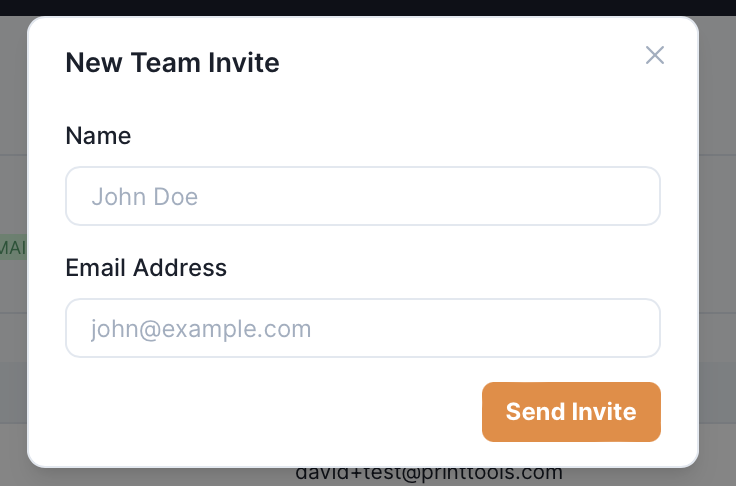
Click “New Invite” at the top of the page.
Enter the user’s name and email address.
An invitation will be sent to their email address, allowing them to sign up and access PrintTools.
Assign User Permissions:
To assign or change a user’s role, click the “…” next to their name.
Select “Change Role” and choose the appropriate role for the user.
Add Additional Licenses:
If you need more user accounts beyond the initial 5, click “Add License” to purchase additional licenses at the cost of $20.00