Adding Equipment to PrintTools
Written By alexprinttools
Last updated About 2 years ago
Overview
Adding equipment to PrintTools is crucial because the sheetfed pricing engine uses the cost data from the specific piece of equipment selected for a job. Some shops prefer to keep their equipment listings generic, while others opt for detailed specificity. At a minimum, we recommend having separate entries for an 8.5” x 11” machine and an 11” x 17” machine, as they do not operate at the same speed, impacting cost efficiency. Additionally, we recommend including Black and White (B/W) equipment for jobs that do not require color, as these are typically charged at a lower rate. Ultimately, the level of detail is up to you.
Steps to Add Equipment
1. Navigate to Equipment
Use the navigation menu on the left-hand side and click on “Lists.”
Select “Equipment” from the Lists section.
2. Click "Create" Button
Click the “Create” button at the top left corner of the Equipment page.
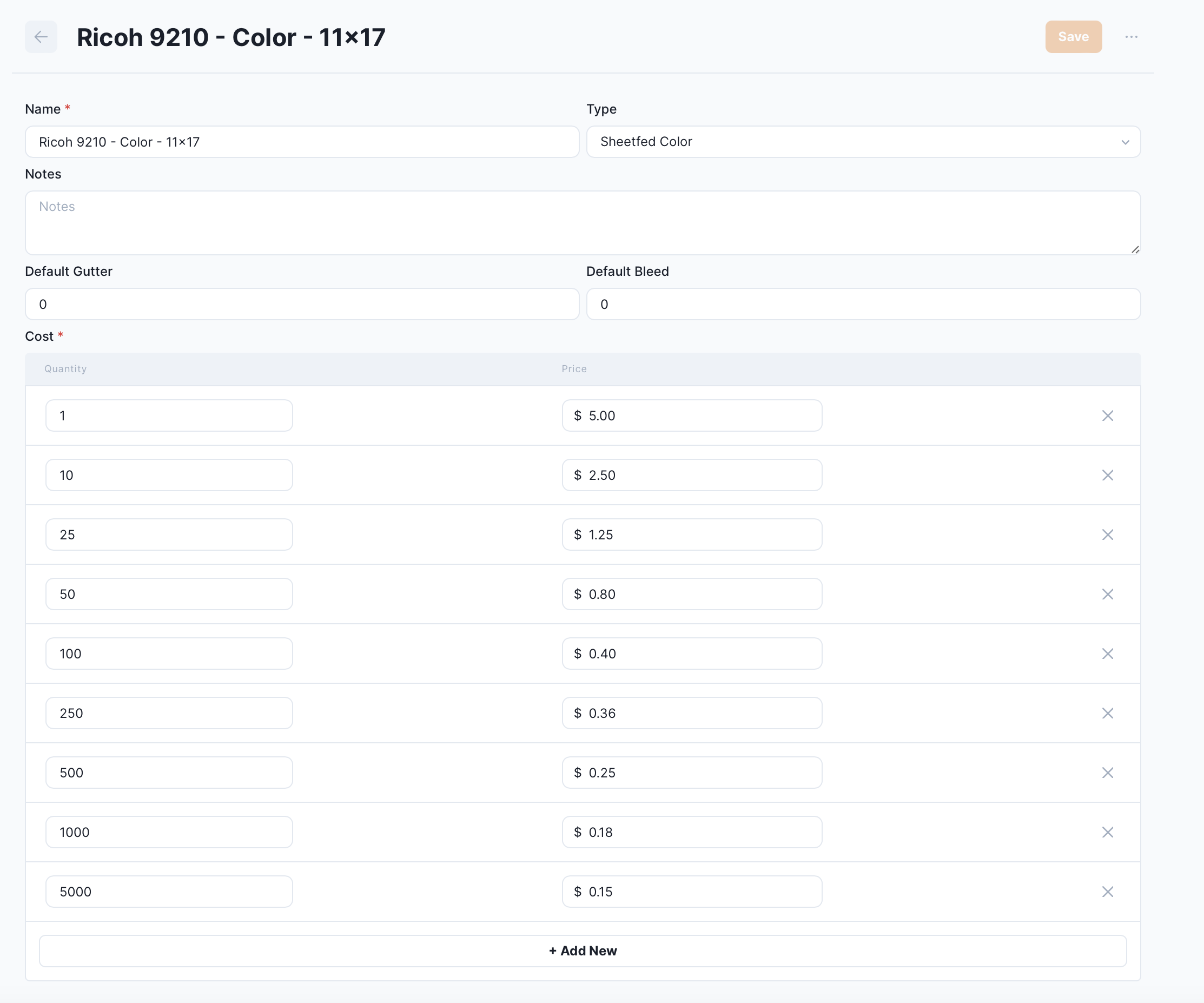
3. Enter Equipment Details
Fill in the following fields with the relevant information:
Name: Enter the name of your machine.
Type: Select the type of equipment.
Notes: Add any specific notes about this machine.
4. Set Default Gutter and Bleed Values
Default Gutter and Bleed: These values will be automatically applied to every job. You can leave these fields blank to set them on a per-job basis. For example, if you set a .125 gutter and bleed value, and you try to run an 8.5” x 11” 2-up on 11” x 17” paper, the system will indicate that only one sheet can fit. You can always adjust these values for specific jobs.
5. Enter Pricing Information
Fill in the cost matrix table with the prices you charge your customers:
Quantity: Enter the quantity of sheets.
Price: Enter the price for each “click”.
NOTE: Click means 1 sheet through the printer.
Add as many rows as needed, filling out the quantity and price for each. Note that this table is for customer pricing, not the cost you incur per click.
6. Save the Equipment
When finished, click the “Save” button at the top.
You can also click the “…” button to duplicate the machine and make small changes for the next piece of equipment.
Sample
Summary
By adding and configuring equipment in PrintTools, you ensure accurate job costing and pricing, tailored to the specific machines in your print shop. This helps in optimizing operations and maintaining cost efficiency