Quickbooks Sync
Sync your shop's financial data and customer info into Quickbooks
Written By alexprinttools
Last updated About 2 years ago
Quickbooks Sync for PrintTools allows you to sync your orders and accounts into Quickbooks for easy book management.
Prerequisites
You must be using the Quickbooks Online product, not the desktop product
Shipping and discounts must be enabled on your Quickbooks account (enable here)
What is synced?
Orders
All your orders that are not in the estimate state will be synced over as invoices in Quickbooks. Account info, jobs, due dates, shipping, discounts, sales tax and payments are included in invoices.
Accounts
Accounts in PrintTools will be synced as Customers in Quickbooks. If you have existing customers in Quickbooks of the same name in PrintTools, they will be used instead of creating a new customer.
How do I enable Quickbooks sync?
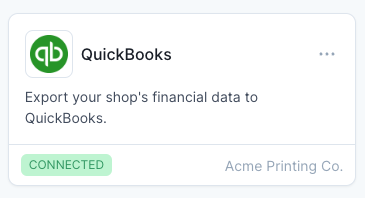
You can enable Quickbooks sync by going to the integrations settings page inside of PrintTools (Settings → Integrations). Simply connect your Quickbooks account by clicking the connect button and sync will automatically run. Once connected, all your past and future orders will sync automatically to Quickbooks and your page should look like this:
When does sync happen?
Quickbooks sync is ran every 2 hours automatically.
How does sales tax work with Quickbooks sync?
The sales tax rates that you have setup in PrintTools will be applied to invoices that are synced to Quickbooks automatically. Quickbooks will determine the tax agency to remit to based on the customer’s billing address.
Notes
It is important to note that invoices and customers inside of Quickbooks that came from PrintTools cannot be edited. Any changes made inside of Quickbooks will be lost. You can easily determine if a customer or invoice is synced to PrintTools by reading the note attached to the invoice or customer.